

Introduction
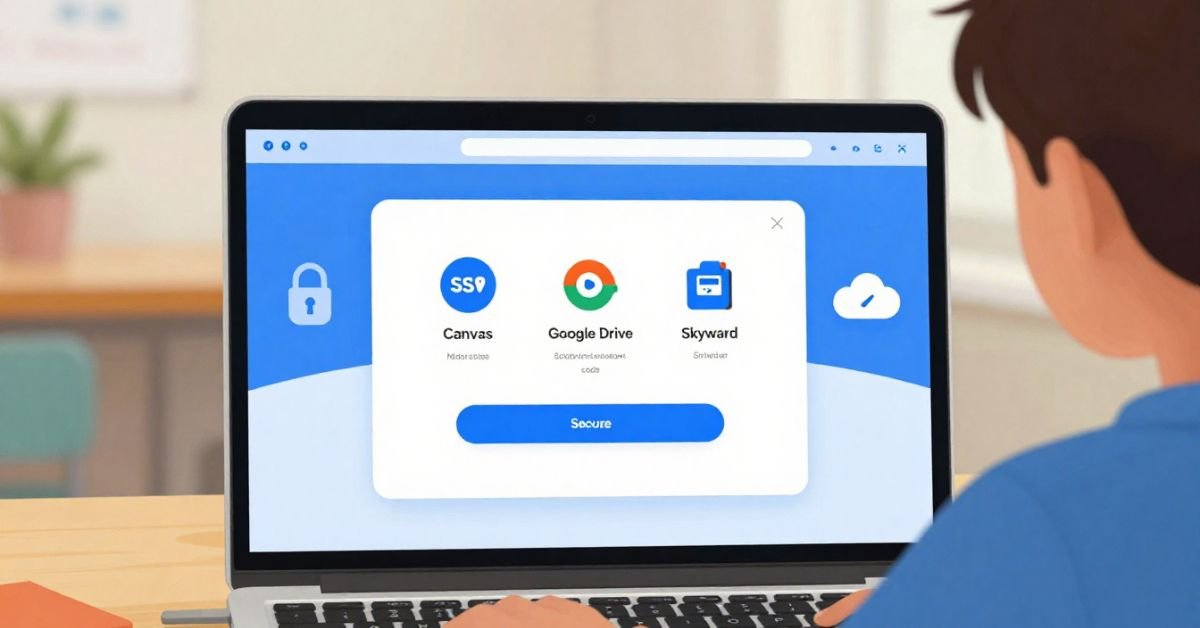
In today’s classrooms, digital tools are the backbone of learning. Teachers use them to manage assignments, students depend on them to access course content, and parents rely on them to monitor academic progress. Imagine needing 20 different passwords for 20 apps daily. That’s where SSO Conroe comes in—offering a unified doorway to all educational resources within the Conroe Independent School District (ISD).According to the platform, “Single Sign-On (SSO) enables users to authenticate once and seamlessly access hundreds of Conroe ISD digital apps via ClassLink.”
Whether you’re a student, an educator, or a parent trying to navigate the system, this guide breaks down what SSO Conroe offers and how to use it securely and effectively.
What Is SSO Conroe?
SSO Conroe is the Single Sign-On system used by Conroe ISD, designed to provide secure and simplified access to district-approved digital learning tools. It is powered by ClassLink, a platform built specifically for K-12 learning environments.
With SSO:
- Students and staff use just one set of credentials to log in.
- They can access platforms like Canvas, Clever, Google Workspace, Skyward, and more.
- Administrators gain visibility into app usage and data security.
| Component | Description |
| Platform Provider | ClassLink |
| URL Access Point | https://launchpad.classlink.com/conroe |
| Authentication Type | SSO with optional 2FA, QuickCard, username/password |
| User Roles | Students, teachers, staff, admin, parents |
SSO Conroe bridges security, speed, and usability in one login interface.
How ClassLink Powers SSO Conroe
ClassLink is the underlying technology that makes SSO Conroe work. Used in over 3,000 school systems nationwide, ClassLink transforms how educational ecosystems manage and interact with third-party apps.
Key Benefits:
- Cloud-based: No bulky software; use from any device
- Accessible: Works across Chromebooks, iPads, PCs, and smartphones
- Dashboard Customization: Fully personalized for each user role
- Security: FERPA, COPPA, and CIPA compliant
| Feature | Description |
| LaunchPad | Central hub for all educational tools |
| My Files | Connects Google Drive, Microsoft OneDrive, and local drives |
| Analytics | Tracks app usage across schools |
| Multi-Language | Supports Spanish and other languages |
With its tight integration, ClassLink helps Conroe ISD unify digital resources under one secure entry point.
How to Log In: SSO Conroe Step-by-Step Guide
Logging into SSO Conroe is quick and intuitive. Here’s how each type of user can access the platform.
Access via Browser:
- Go to https://launchpad.classlink.com/conroe
- Enter your Conroe ISD username and password.
- If required, enter your security code or use multi-factor authentication.
- Click Sign In
Access Using QuickCard (For Elementary Students):
- Hold your QuickCard (QR Code) to the device’s camera.
- Automatically logs in without typing credentials
Mobile App (Optional):
- Download ClassLink LaunchPad on Android/iOS
- Search and select Conroe ISD
- Log in with district details
Login Option
| Login Option | Best For | Pros |
| Username + Password | Grades 6–12, staff | Most secure + optional MFA |
| QuickCard | Elementary school students | Easiest for young learners |
| Mobile App | On-the-go access | Syncs files across cloud |
User Roles: Students, Teachers, Staff, and Admins

SSO Conroe tailors access and interface functionality based on user roles, making it a scalable solution for schools with diverse needs.
Teacher Dashboard:
- Access grading platforms (Canvas, Skyward)
- Manage Google Classroom or Office 365
- Monitor learning analytics
Student View:
- Launch readable dashboards with curriculum tools
- Access tools like Lexia, McGraw Hill, and Imagine Learning
- Submit assignments via Google Drive or OneDrive
Admin Panel:
- Control access by school or grade level
- Generate reports on software usage and trends
- Integrate district-wide tools via ClassLink API
Top Features of the SSO Portal
Let’s examine what makes SSO Conroe truly valuable beyond simplified logins.
Highlighted Features:
- LaunchPad: Personalized dashboard of apps
- My Backpack: For students to organize learning apps
- Library Portal: This feature allows for direct integration with Destiny and Sora eBooks.
- Single-Click Password Reset (if enabled by admin)
- Two-Factor Authentication (2FA) for faculty
| Feature Name | Purpose |
| Favorites Bar | Prioritize most-used tools |
| Cloud Drives | Link personal storage (GDrive, OneDrive) |
| Screen Reader Support | Accessibility feature for impaired users |
These features create a frictionless, secure digital learning environment.
Security and Data Privacy with SSO in Education
Schools, where the law heavily protects data from minors, prioritize security.
SSO Conroe and ClassLink comply with:
- FERPA: Restricts access to student academic records
- COPPA: Regulates child online data privacy
- CIPA: Filters online materials for minors
- Texas Education Agency (TEA) policies
Data Is:
- Encrypted at rest and in transit
- Not sold or shared with advertisers
- Accessible only to verified district personnel
| Security Protocol | Description |
| Identity Management | Automated provisioning from district systems |
| Real-time Monitoring | Detects unauthorized access attempts |
| Audit Logs | Tracks who accessed what, and when |
SSO Conroe applies zero-trust principles, especially important in remote and hybrid learning environments.
Troubleshooting SSO Conroe Login Issues
Encountering login issues? Here’s how you can resolve common problems.
Common Issues & Fixes:
| Issue | Cause | Solution |
| Password not working | Expired password or incorrect info | Use “Help, I forgot my password” link |
| QuickCard won’t scan | Poor lighting or dirty camera | Clean lens + ensure camera permissions on |
| App not loading | Session expired | Log out and log back in |
If problems persist, contact your school or district’s technology help desk.
SSO Conroe vs. Other School District Portals
Many districts use SSO, but Conroe ISD’s implementation stands out for its user-friendliness, device compatibility, and implementation of analytics.
| Feature/Function | SSO Conroe (ClassLink) | Clever | Google SSO |
| QuickCard Login | ✅ Yes | ✅ Yes | ❌ No |
| Multi-platform App Coverage | ✅ High | ⚠️ Moderate | ✅ High |
| Admin Analytics Suite | ✅ Comprehensive | ⚠️ Limited | ⚠️ Basic |
| FERPA + COPPA Ready | ✅ Fully Compliant | ✅ | ✅ |
| Interface Customization | ✅ Flexible | ⚠️ Minimal | ❌ Locked UI |
This proactive portal ensures teachers focus on teaching, not tech troubleshooting.
The Future of Digital Access in Conroe ISD
Conroe ISD is actively researching further integration of SSO with:
- Digital assessments via ClassLink Analytics+
- Parent Dashboards for better home-school syncing
- Remote device management for hybrid learning scalability
In the Pipeline:
- Google Classroom deep linking
- Student screen-time summaries for parents
- AI-generated reading level recommendations based on login activity
With the continued evolution of tools, SSO Conroe represents the district’s commitment to tech-forward, student-centered digital education.
FAQs
What is SSO Conroe?
It’s Conroe ISD’s Single Sign-On platform powered by ClassLink for simplified access to learning tools.
How do students log into SSO Conroe?
Using their district username and password or a QuickCard scan.
Is it safe for student data?
Yes. It follows FERPA, COPPA, and CIPA data security standards.
Can I log in from a mobile device?
Yes. Use the ClassLink LaunchPad app on iOS or Android.
Who do I contact for help with SSO Conroe login?
You can reach out to your campus technology coordinator or the Conroe ISD Help Desk for assistance.
Conclusion
SSO Conroe isn’t just a login screen—it’s a strategic component of Conroe ISD’s digital infrastructure. From the personalized dashboards to the secure, scalable backend, the platform empowers students, educators, and administrators with seamless tools that work.
Whether you’re navigating grades, managing attendance, or integrating new apps, this platform ensures every user logs in once—and gets everything done.